Proteus VSM AVRStudioTM Viewer
The Proteus VSM AVRStudioTM viewer provides the link between schematic capture and embedded software development, allowing Proteus VSM to function as a plug-in simulator for the AVRStudioTM IDE. Together with Atmels AVRStudioTM we have developed a true plug and play solution which enables seamless design flow from schematic capture through software design, compilation, debugging and co-simulation.
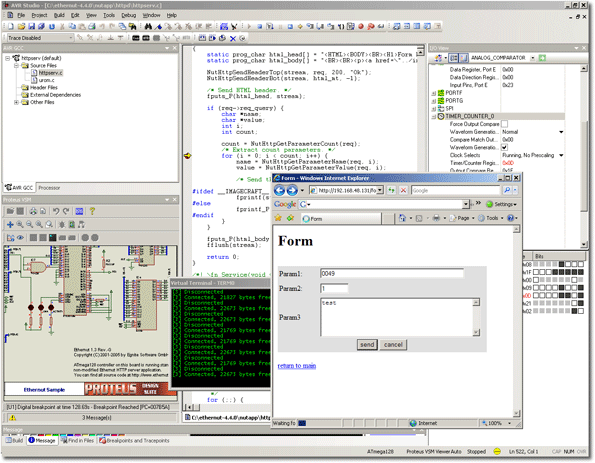
Proteus VSM and Atmel AVRStudioTM running the Ethernut TCP/IP stack on a schematic design. A copy of internet explorer is used to interact with the 'virtual hardware' designed in Proteus.
Software Requirements
- Proteus VSM for AVR at Version 7.4 or later.
- Atmel AVRStudio Version 4.14 onwards
Basic Operation
- Draw the schematic for your project in the ISIS capture package exactly as normal.
- Launch AVRStudio and open your project.
- Go to the Debug Menu in the AVRStudio IDE, 'Select Platform and Device' command and the select the 'Proteus VSM Viewer' and the processor variant used on the schematic.
- If the Proteus Viewer does not appear by default you can launch it from the View Menu - Toolbars - Proteus VSM menu option in AVRStudio.
- Use the Open Icon in the Proteus Viewer to load the schematic associated with your current project.
- Write and build your code in AVRStudion in the normal way.
- To run the simulation use the green play icon to connect the Proteus Simulation to AVRStudio and then the usual AVRStudio debugging commands (run,step,etc.) to control the session.
- Disconnect the simulation from AVRStudio when finished by first using the pause icon and then the stop icon.
Full details of using the Proteus Viewer (including tutorial, taking measurements, setting breakpoints and using diagnostic messaging) are included in the associated help file which can be launched from the help icon within the viewer itself.